

Turn a branded short link into a newsletter draft
Use Mailchimp, Brevo, MailerLite or SendGrid Marketing to prepare a campaign while keeping recipients and sending under review.
By ShortFreeURL Team · 12 September 2026
Start with one useful destination
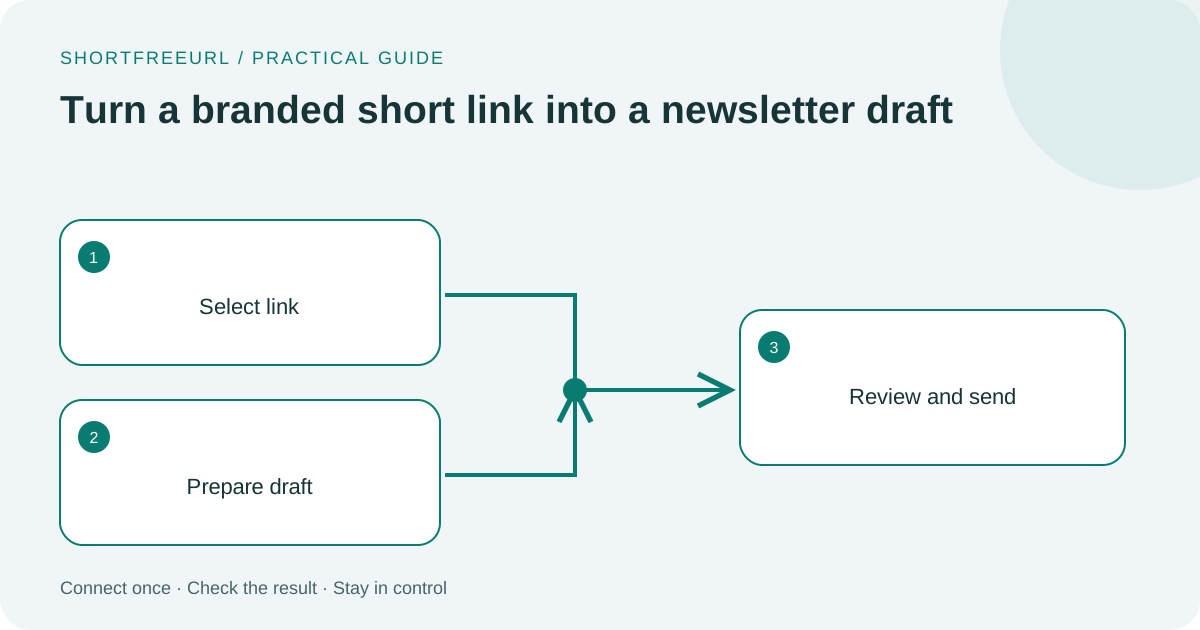
A product update, an event registration or a new guide gives a newsletter a clear purpose. Create the short link first, open it yourself and check that the title describes the destination. The draft connector uses this title as the starting subject and includes the branded URL in the body.
Keep the destination public if the newsletter is meant for new visitors. If an account is required, explain that in the copy. A short link makes the address easier to share; it does not remove the destination’s permissions.
Configure the email account
Connect your marketing API key in Integrations & API and run Check connection. Choose Configure to select an audience or group and enter verified sender information. Mailchimp requires an audience; SendGrid uses sender and unsubscribe-group IDs.
Choose Create email draft and search the workspace’s active links. The response shows the campaign ID returned by the provider. Open your email platform to review the subject, body, sender, recipient selection and unsubscribe behavior before sending. This connector never schedules or sends the campaign.
Use automation deliberately
Automatic draft creation can help a team that publishes a manageable number of links. Turn it On only when new workspace links are suitable campaign candidates. A team generating hundreds of temporary links will usually prefer manual drafts.
If the request times out after reaching the provider, its outcome may be uncertain. ShortFreeURL retains that result and prevents the same link and connection from creating a second draft. Check the provider account before deciding what to do next. Choose your email integration or read the Mailchimp guide.