An organization owns domains, links and billing. People are added to the organization, and optionally grouped into teams that own a subset of domains.
Roles
- Owner — one per organization. Can transfer domains, transfer ownership and delete the organization. Ownership transfer demotes the previous owner to admin in the same action.
- Admin — everything except ownership transfer: billing, member management, API keys, audit log, domain deletion and statistics deletion.
- User — creates and edits links, folders, bundles, posts and QR codes.
- Readonly — sees links and statistics, changes nothing. Write endpoints return 403.
Sending invitations
Settings, then Organization, then Invite. Enter the email address and the role; optionally attach the invitation to a team. The invitation is emailed as a link valid for fourteen days. You can resend it or revoke it while it is pending.
An invitee who already has an account joins on click. Someone new is routed to registration with the address pre-filled, and joins as soon as they finish signing up.
Teams
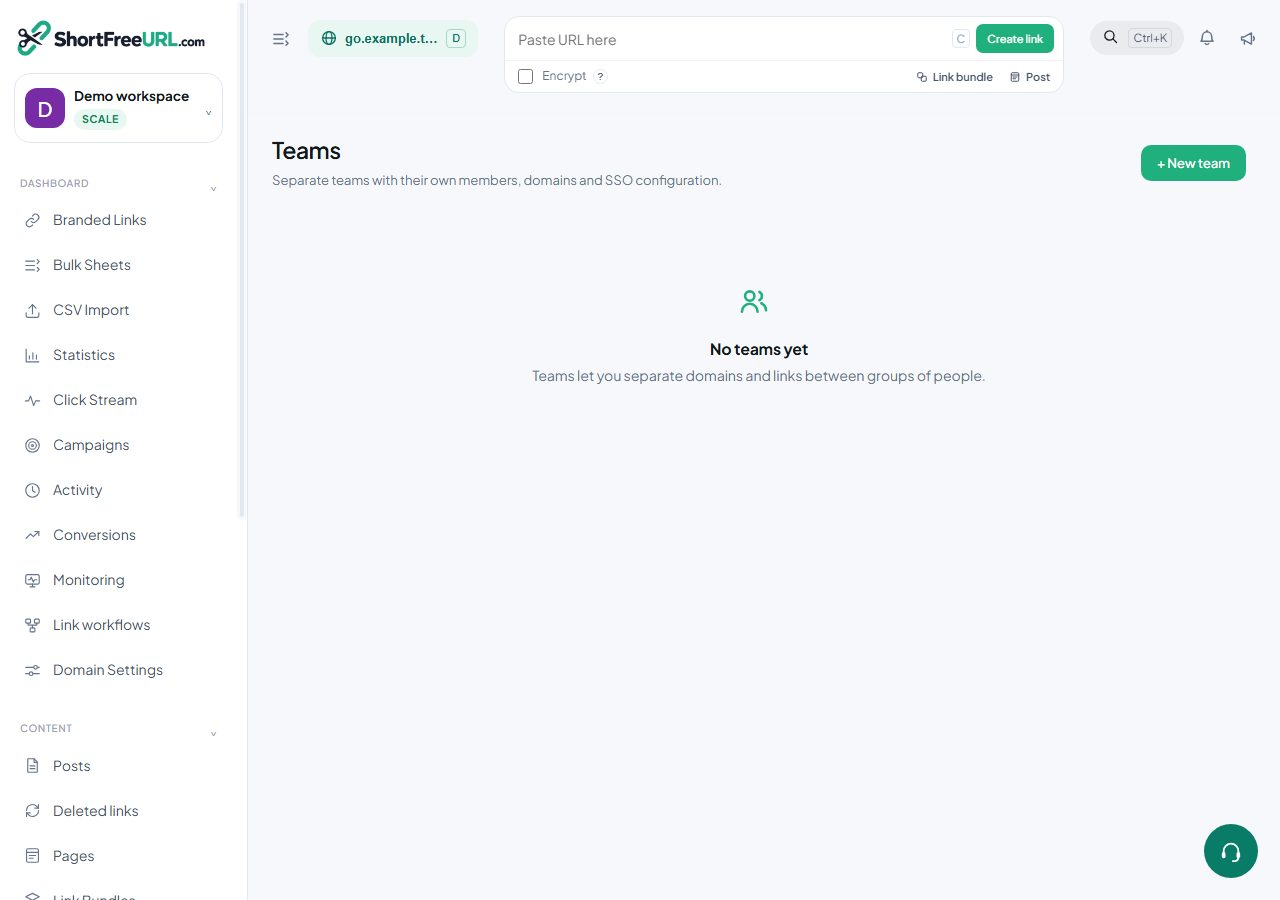
A team groups people and owns domains. Assign a domain to a team and only that team's members see it in the switcher. Teams also hold two settings that belong to a group rather than an individual: enforced two-factor authentication, and SAML single sign-on with its own entry point, certificate, entity ID and ACS URL.
Link-level permissions
A single link can be restricted to named users. Anyone outside that list — except the link's creator and the organization's owners and admins — gets a 404 from the API rather than a 403, so a restricted link does not reveal its own existence.
Practical advice
Give day-to-day contributors the User role and reserve Admin for the two or three people who handle billing and domains. Create folders per team or campaign and set folder defaults, so everyone tags and tracks links the same way without being told to.
Find this in your dashboard
- Sign in and select the workspace and domain you want to manage.
- Open Teams. Review the article’s steps and your plan’s available controls.
- Save your changes, reopen the record and verify the saved result. For routing changes, check the short link with a test visit.