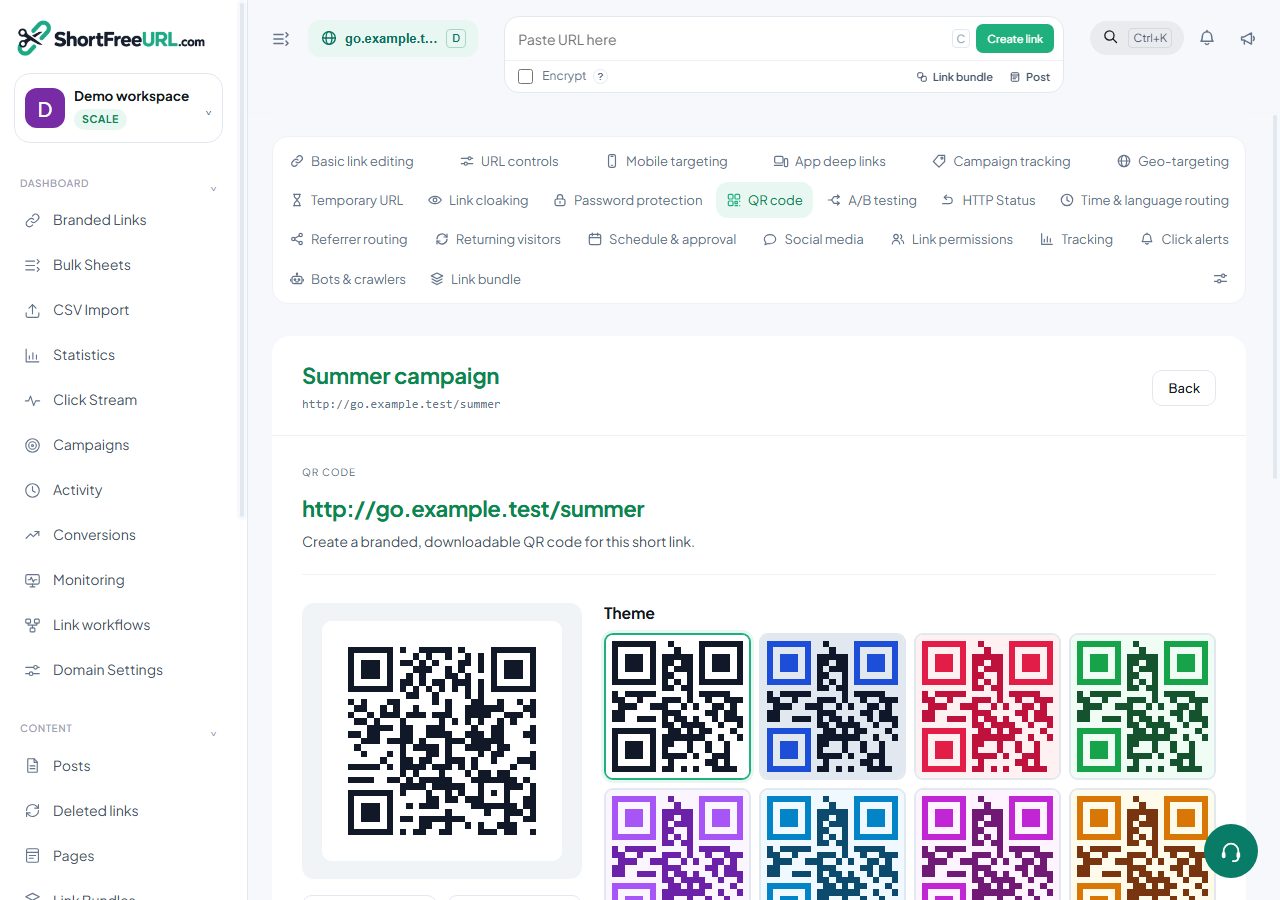
The same QR studio appears in three places: the QR tab of the link editor, the QR codes page, and Domain settings where it sets the domain default. The controls are identical everywhere.
What you can change
- Theme — eight preset palettes: classic, midnight, coral, forest, bubble, ocean, berry and amber. Picking a theme resets the individual colours to that theme's values.
- Colours — foreground, background and eye colour, set individually once you want to go past a preset.
- Corner style — square, rounded or dot finder patterns.
- Module style — square or dot.
- Corner radius — a slider from 0 to 50.
- Error correction — L, M, Q or H.
- Caption — a short line of text under the code, such as "Scan for the menu".
- Centre logo — an image under 400 KB, which raises error correction to H automatically.
The preview redraws on every change, so you can see immediately when a colour combination has stopped being scannable.
Where a style is stored
A style set in the link editor is saved with that link and used every time you download its code. A style set in Domain settings becomes the default for new codes on that domain. A folder can carry a QR style as a default too. The precedence runs link, then folder, then domain.
Downloads
Four buttons: PNG at 512, PNG at 2048, SVG and PDF. For anything printed, use SVG or PDF — they scale without softening the module edges, which is what makes a marginal code fail at the printer.
Classic codes are not saved automatically
Generating a code in the studio does not create a stored object. Download it, or publish it as a permanent image URL. The QR codes page lists the codes you have published, not every code ever previewed.
Scans are tracked
A code generated here encodes the short URL with ?qr=1, so scans are recorded as scans and reported separately from ordinary clicks. Generate a code elsewhere from the same short URL and its scans are indistinguishable from clicks — which is a good reason to generate here.
AI artwork
The AI artwork option blends generated artwork with a high-error-correction code and verifies the result still scans before showing it. It starts on the Starter plan.
Find this in your dashboard
- Sign in and select the workspace and domain you want to manage.
- Open QR code. Review the article’s steps and your plan’s available controls.
- Save your changes, reopen the record and verify the saved result. For routing changes, check the short link with a test visit.