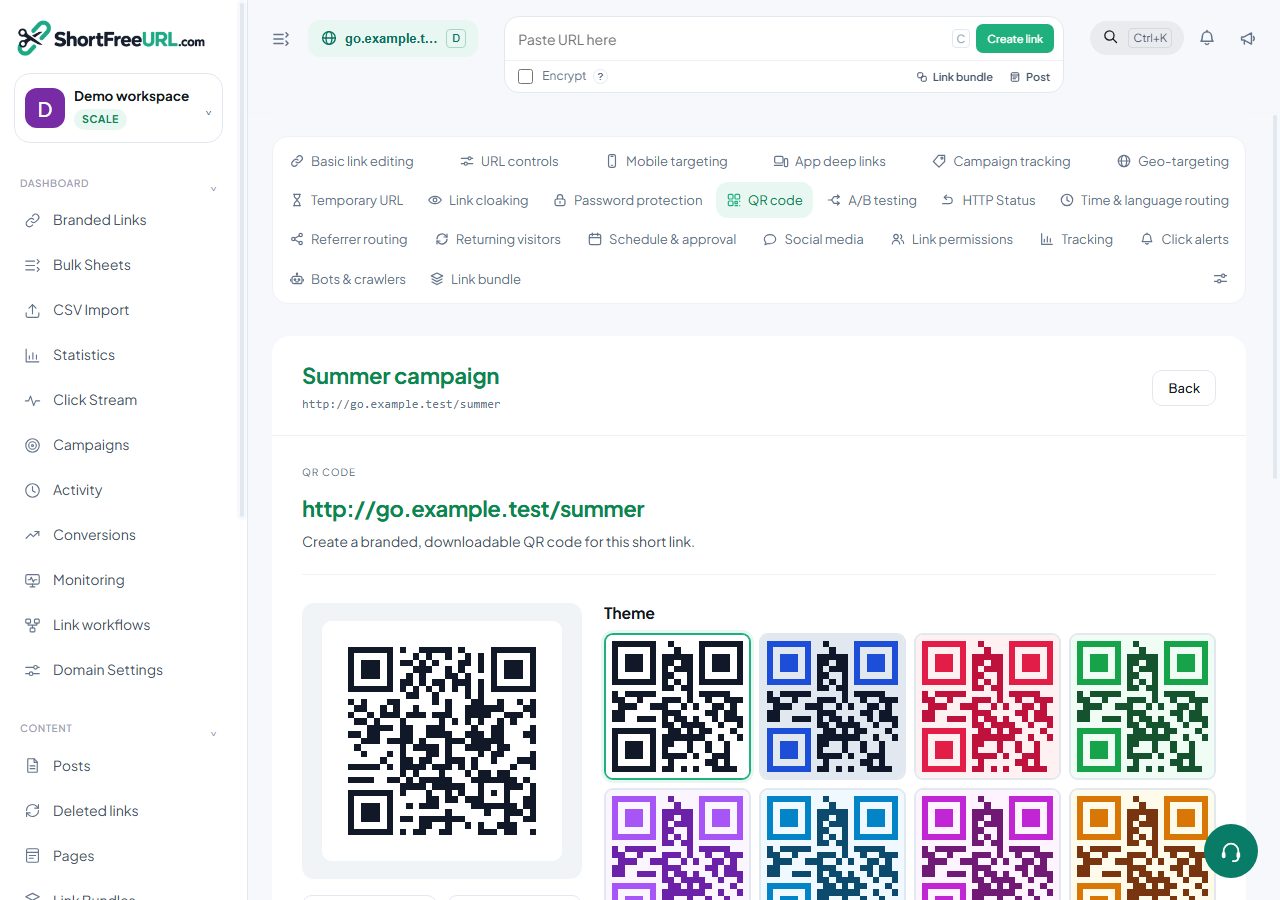
A QR scan is a click. It goes through the same redirect pipeline, gets the same geo and device detection, and lands in the same click log. One flag separates it.
The marker
Codes generated in the studio encode the short URL with ?qr=1. The redirector sets the QR flag on the click when it sees that parameter, or when utm_medium=qr is present. Everything else — country, city, device, referrer, destination served — is recorded exactly as for a typed or clicked link.
Where scans appear
- A QR scans card on the statistics page, showing the count for the current range and filters.
- A QR only filter that restricts every other card to scan traffic, so you can see which countries, devices and links scans came from.
- The qr_scan column in the click stream and in the S3 export.
What scan data actually tells you
Device and OS breakdowns are the useful part: they tell you the split between iOS and Android on physical placements, which is worth knowing before you build an app-install campaign. Referrer is almost always empty, because a camera app is not a web page. Location is often more accurate than for ordinary clicks, since the person is physically near the code — though it is still an IP lookup, not a GPS reading, and a mobile network can place someone in a different city entirely.
Getting per-placement numbers
The flag tells you a scan happened, not which poster it happened on. For that, give each placement its own link. Ten links pointing at the same destination, one per location, and the top-links breakdown becomes a placement report. Set UTM values on each so the destination's own analytics can distinguish them too.
Codes you did not generate here
If someone generated a code from your short URL with an external tool, it encodes the plain URL with no marker, and its scans are recorded as ordinary clicks. There is no way to recover the distinction afterwards. Generate codes in the studio and this problem does not arise.
Bots
Codes are occasionally fetched by crawlers and scanners after the URL leaks onto the web. The human flag still applies, so filter to human clicks before reporting scan numbers to anyone.
Find this in your dashboard
- Sign in and select the workspace and domain you want to manage.
- Open QR code. Review the article’s steps and your plan’s available controls.
- Save your changes, reopen the record and verify the saved result. For routing changes, check the short link with a test visit.