Account security lives under Settings, Security. Everything here is per person; the organization-wide enforcement lives on teams.
Two-factor authentication
Start setup and you are shown a secret and a QR code for an authenticator app. Enter a code from the app to enable it. Once enabled, login asks for a code after the password.
Backup codes are generated at the same time. Store them somewhere that is not the phone holding the authenticator — the common way to lose an account is to lose the only device that can prove you own it. You can regenerate the set, which invalidates the previous one.
Disabling 2FA requires your password, so someone with a borrowed session cannot quietly turn it off.
Passkeys
Passkeys authenticate with the device you already unlock: Touch ID, Windows Hello, a security key. Register one from Security, give it a label so you can tell devices apart later, and it appears in the list with when it was added.
Register at least two — a laptop and a phone — so losing one device is an inconvenience rather than a lockout. Removing a passkey takes effect immediately.
Sessions
The sessions list shows where your account is signed in. Revoke all sessions signs out every device except the one you are using, which is the correct first move if you suspect a device is compromised or you have just left a shared computer signed in.
Passwords and sign-in methods
Change your password from the same page. Sign-in also supports a magic link by email and Google sign-in; an account can use more than one method. Email addresses are verified, and changing an address requires confirming the new one.
Enforcement for a team
Requiring 2FA for everyone is a team setting rather than a personal one. A team can also carry SAML single sign-on, which is the stronger control for an organization of any size.
API keys are separate
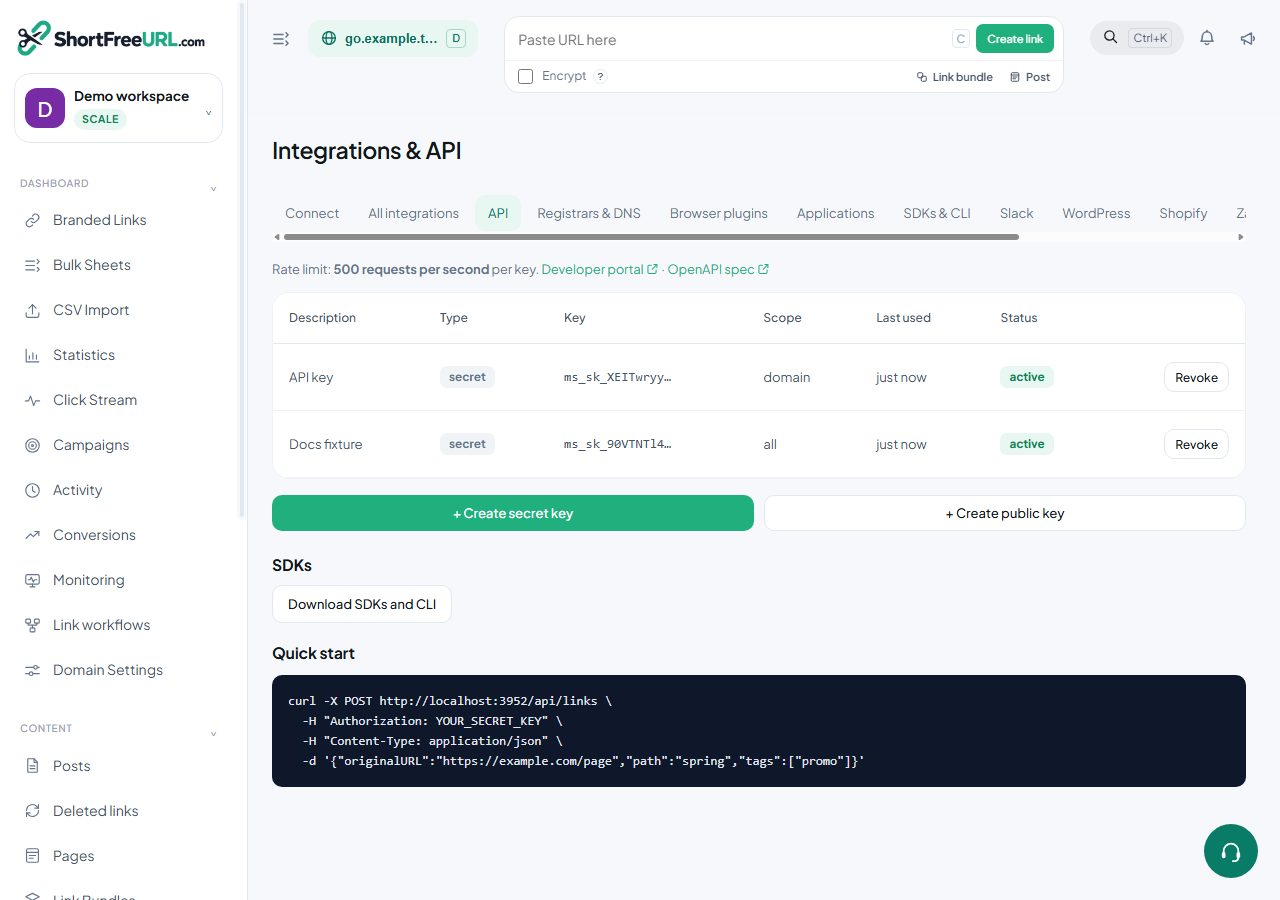
None of this protects an API key. A key is a bearer credential: whoever holds it can act with its permissions, regardless of your 2FA. Scope keys narrowly, give them expiry dates and revoke them when an integration is retired.
Find this in your dashboard
- Sign in and select the workspace and domain you want to manage.
- Open API keys. Review the article’s steps and your plan’s available controls.
- Save your changes, reopen the record and verify the saved result. For routing changes, check the short link with a test visit.