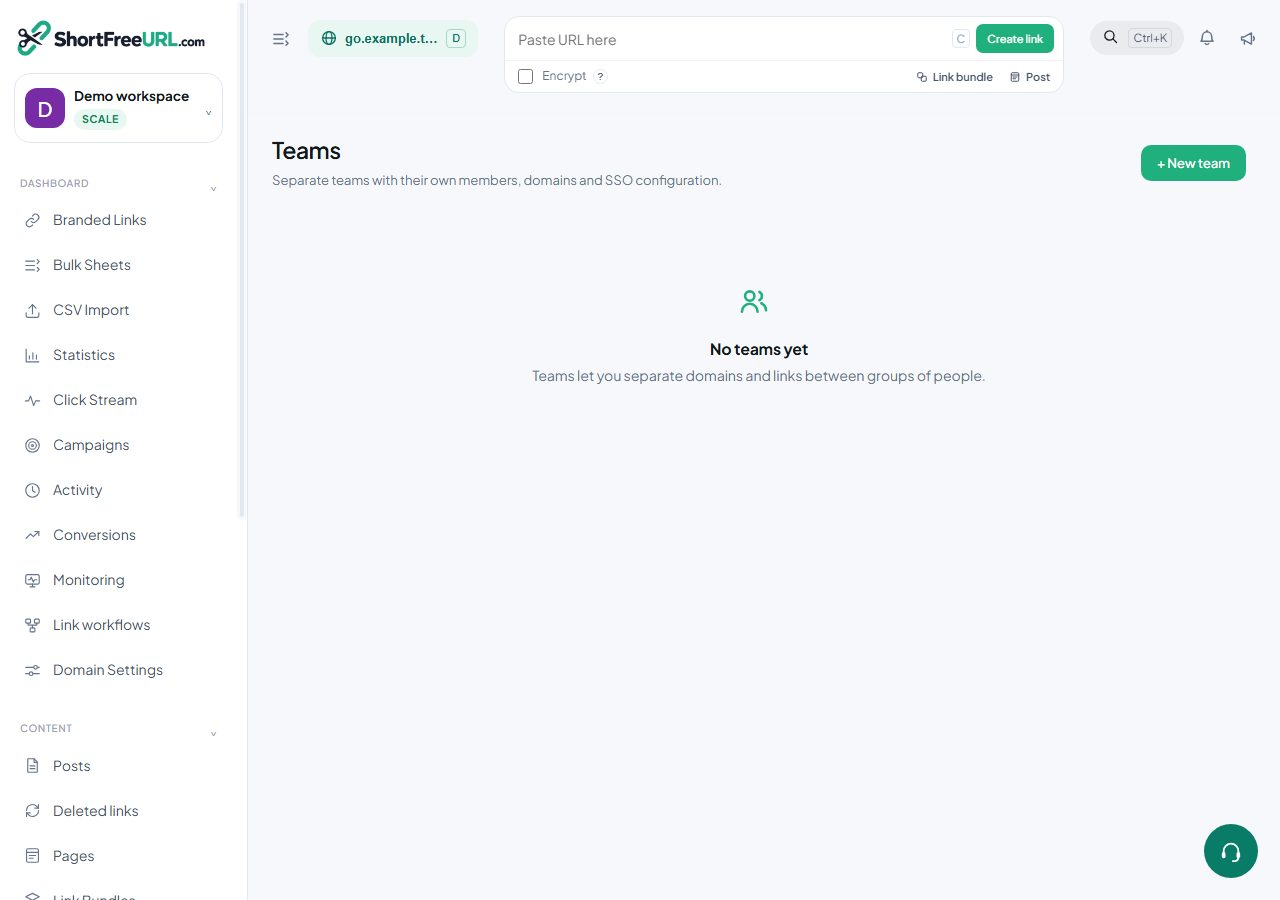
Single sign-on is configured per team rather than per organization, which lets one organization serve several groups with different identity providers — an agency and its client, or two subsidiaries.
What you configure
On the team, set:
- Entry point — your identity provider's SSO URL, where people are sent to authenticate.
- Certificate — the provider's signing certificate, used to verify assertions.
- Entity ID — the identifier your provider expects for this service.
- ACS URL — the endpoint your provider posts assertions back to. This value is shown on the team page; paste it into your provider's configuration.
The flow
A person visits the team's SAML entry point and is sent to your identity provider. The provider authenticates them and posts a signed assertion to the ACS URL. The assertion signature is verified against the configured certificate, and a session is created for the matching user.
Practical setup order
- Create the team and add the domains it should own.
- Copy the ACS URL and entity ID into your identity provider and create the application there.
- Paste the provider's entry point and certificate back into the team.
- Test with one account before pointing everyone at it.
Keep one owner account that can sign in without SSO until you are certain the configuration works. A misconfigured certificate locks out everyone who depends on it, and the fix requires being signed in.
Certificate rotation
Identity provider certificates expire. When yours rotates, paste the new certificate into the team before the old one expires; assertions signed with an unknown certificate are rejected. Put the expiry in a calendar — this is the single most common cause of an SSO outage.
Roles
SSO authenticates; it does not decide permissions. Roles stay in ShortFreeURL: owner, admin, user and readonly. Someone signing in through SSO gets the role their membership carries.
Combining with 2FA
A team can also require two-factor authentication. If your identity provider already enforces MFA, requiring it again here is usually redundant. If it does not, turn it on.
SSO is on the Scale plan; teams themselves start on Growth.
Find this in your dashboard
- Sign in and select the workspace and domain you want to manage.
- Open Teams. Review the article’s steps and your plan’s available controls.
- Save your changes, reopen the record and verify the saved result. For routing changes, check the short link with a test visit.