Use the ShortFreeURL CLI or REST API in a GitLab pipeline to create release and documentation links from a reviewed file in your repository.
1. Create a restricted key
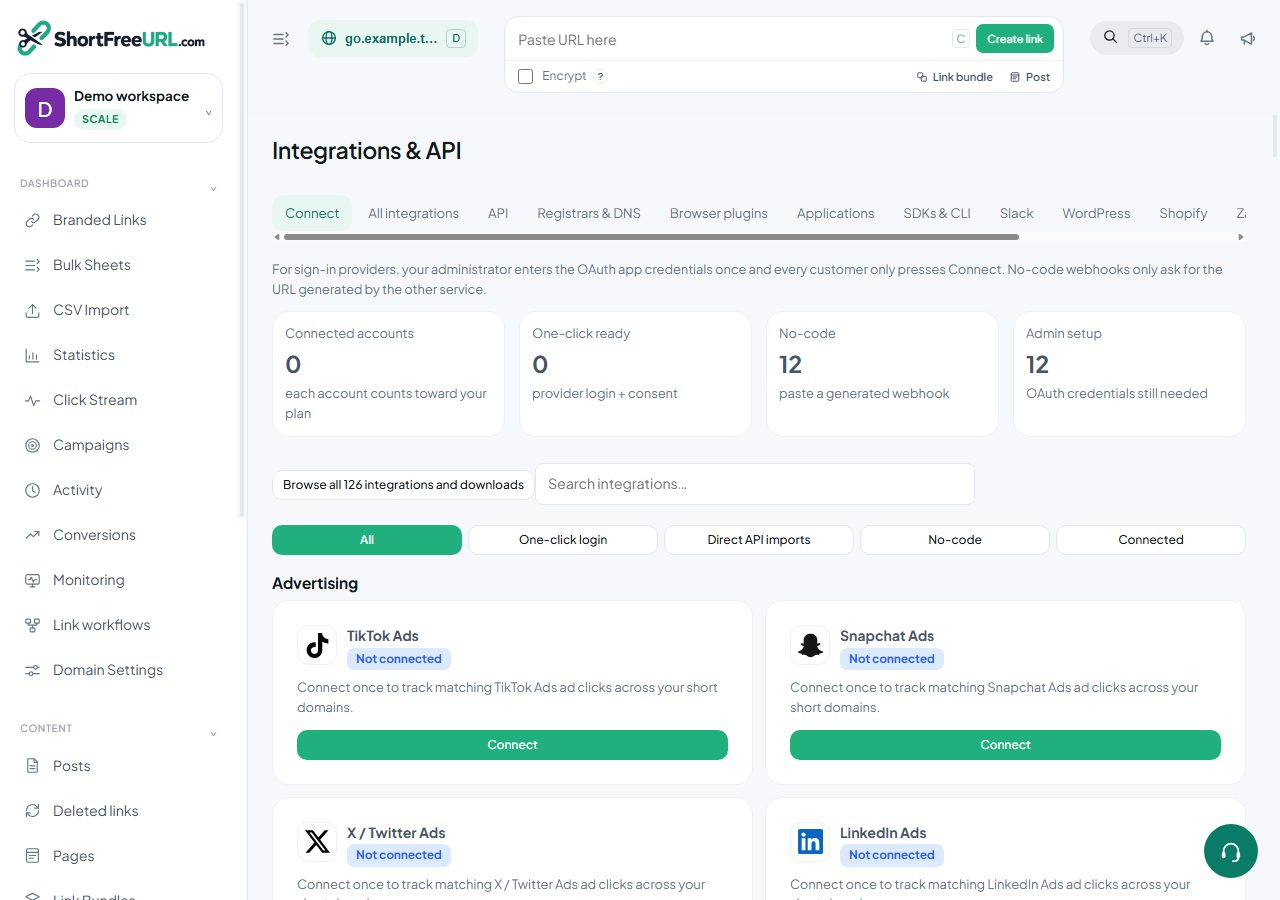
Create an API key in Dashboard → Integrations & API. Give it only the domain and write permissions the pipeline needs.
2. Save the key as a masked variable
In GitLab, open Settings → CI/CD → Variables. Add SHORTFREEURL_API_KEY as a masked, protected variable. Add SHORTFREEURL_BASE_URL for self-hosted installations. Never commit the key to .gitlab-ci.yml.
3. Add a pipeline job
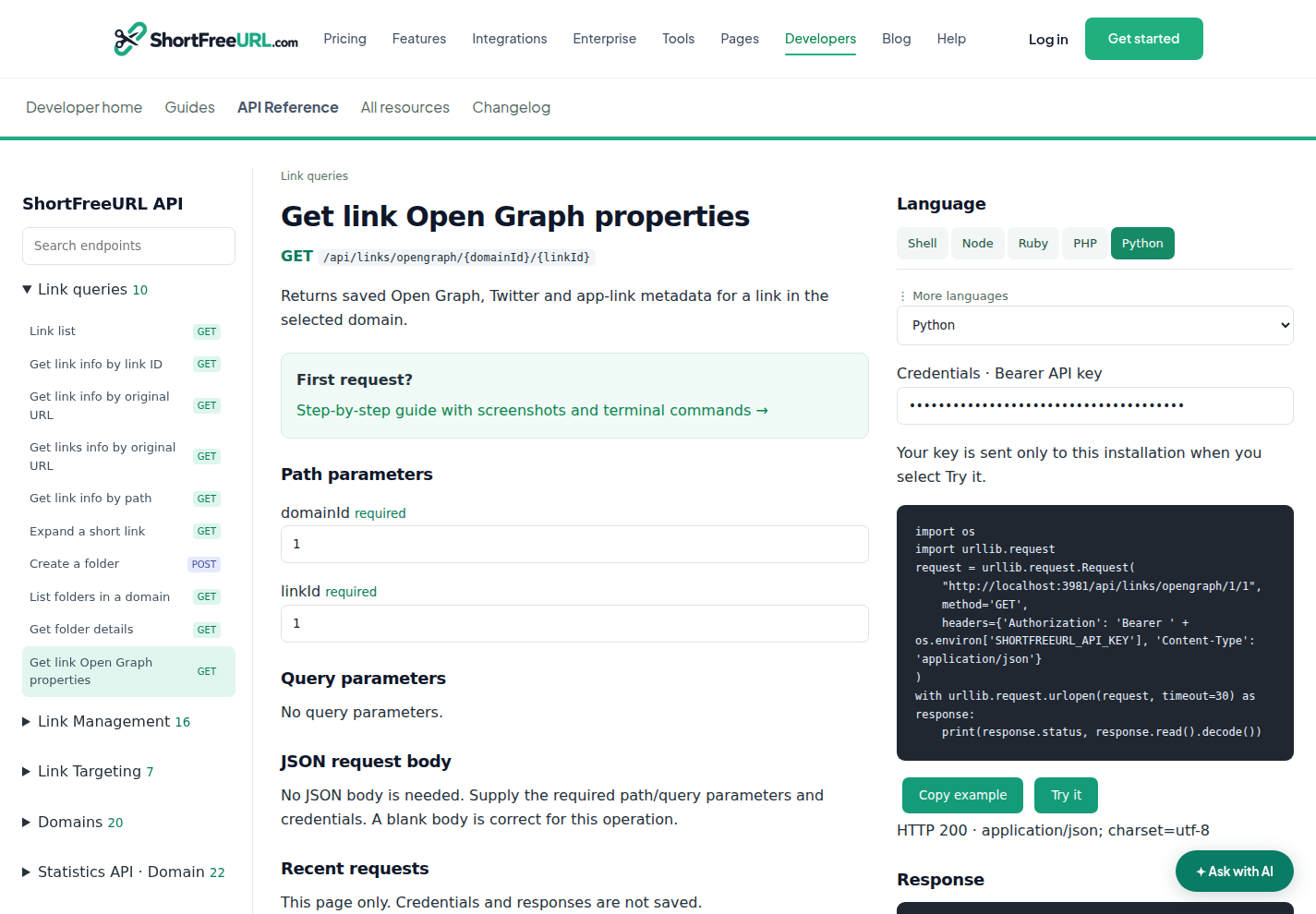
Install the CLI from Downloads, then run the documented sync command against the reviewed links file. Use a fixed CLI version so pipeline behavior changes only when you update it.
4. Verify safely
Run the job on a test branch and review its log. Open Branded Links and confirm the expected paths and destinations. If the request times out, look up the link before retrying so the pipeline does not create a duplicate.
Permissions and failures
401 means the key is missing or invalid. 403 means its scope or workspace role is insufficient. 402 means the current plan does not allow that action. 409 means a path or idempotency rule conflicted. Rotate the GitLab variable immediately if its value appears in a job log.
Open GitLab CI integration · API reference · Terminal guide
Find this in your dashboard
- Sign in and select the workspace and domain you want to manage.
- Open Integrations & API. Review the article’s steps and your plan’s available controls.
- Save your changes, reopen the record and verify the saved result. For routing changes, check the short link with a test visit.