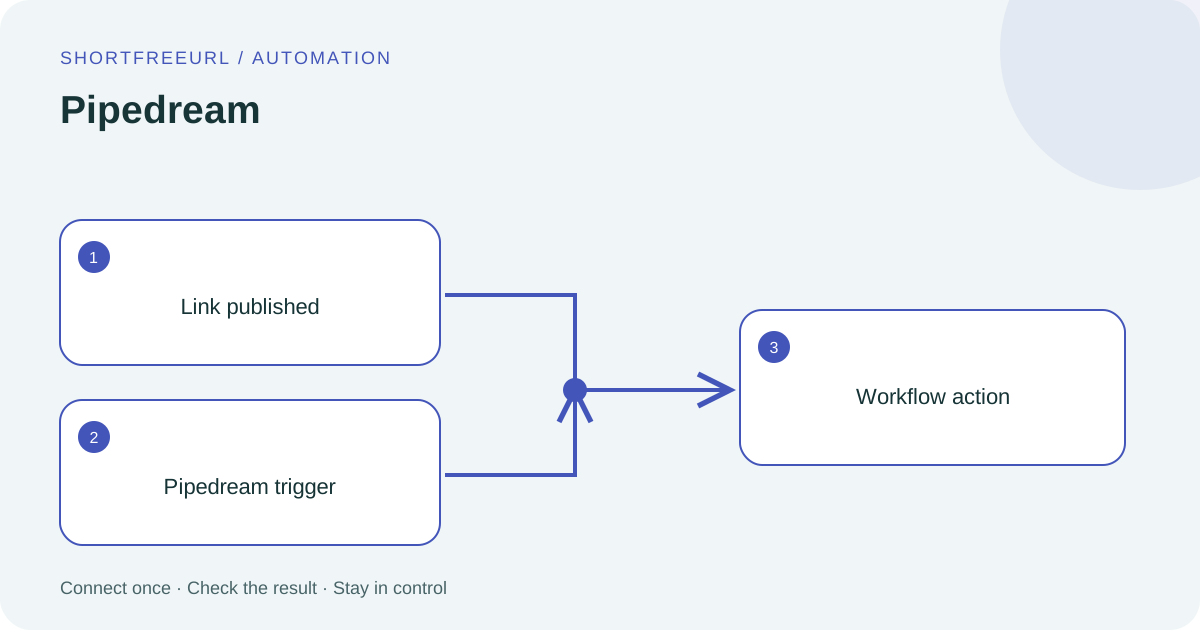
Connect an incoming workflow URL to use short-link events in Pipedream.
What this connection does
The dashboard sends subscribed events to your activated workflow. Choose the following action inside Pipedream, such as creating a CRM record or a newsletter draft.
This is an incoming-webhook connection; it does not automatically grant access to every application in the workflow. Authenticate those applications in Pipedream.
Before you start
Use a workspace Owner or Admin account. Prepare access to your provider account. Google login requires the site administrator’s OAuth application to be configured first; API-key connections need the key from your own provider account.
Setup
- In Pipedream, create an incoming HTTP/webhook trigger. Enable external requests using the authentication supported by your workflow plan.
- Copy the public HTTPS production trigger URL, then open this integration in ShortFreeURL. Paste the URL and give the workflow a name.
- Save and copy the signing secret shown once. Your receiver can verify the ShortFreeURL signature before accepting events.
- Use Events to select which events to deliver. Send test intentionally starts your workflow; keep downstream actions in test or draft mode.
- Inspect Deliveries and the workflow execution log. Map the shortURL field from the link payload into your next action.
Data and verification
Out: selected link/domain events and the account context included in that event.
In: the receiving workflow’s HTTP response. An accepted trigger does not prove its later actions succeeded.
Troubleshooting
A connected badge means credentials have been saved. Run the available connection check and inspect Deliveries for the provider response. For a 401/403, check key permissions and account ownership. For quota or rate limits, check the provider dashboard before retrying. Never paste a secret into a public support message.
Do I need to write integration code?
No code is needed to paste the trigger URL and map fields in the workflow builder. The provider may require a paid plan for webhook triggers or particular actions.
Next steps
Open this integration · Browse integrations
Find this in your dashboard
- Sign in and select the workspace and domain you want to manage.
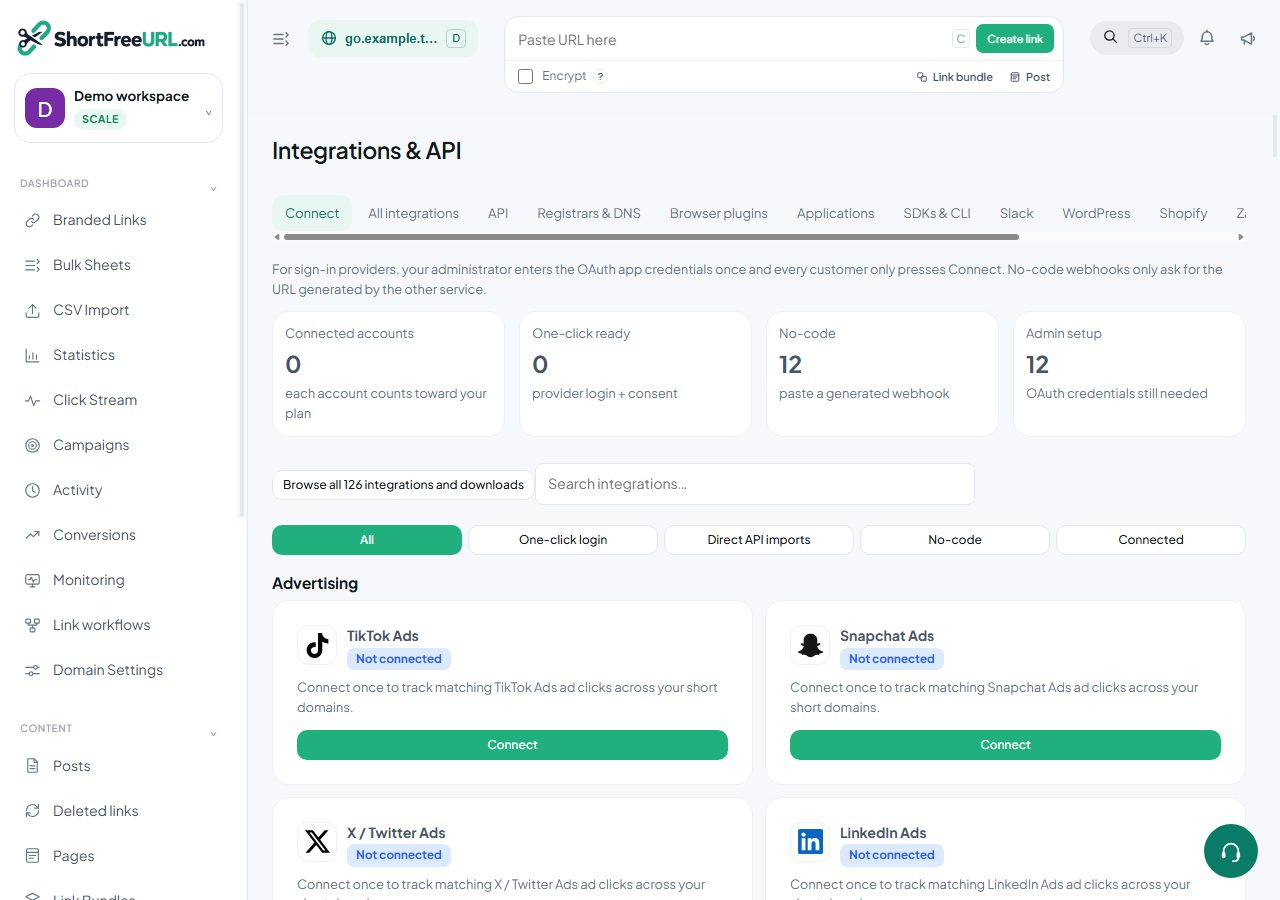
- Open Integrations & API. Review the article’s steps and your plan’s available controls.
- Save your changes, reopen the record and verify the saved result. For routing changes, check the short link with a test visit.